Choose your wallpaper.
Use your wallpaper as your Discord background.
Use a Wallpaper Engine wallpaper
Choose the installed wallpaper’s folder or open its scene.pkg. Supported scenes render locally from their first frame.
Use a playing window instead
For web wallpapers or scenes whose effects look different, choose Play in Window in Wallpaper Engine and select the moving preview.
Use an MP4 or image file instead
Choose a video, still image, or animated image from your computer.
Click the timeline to jump. Drag the purple handles to trim the start and end.
Your wallpaper
Select a wallpaper above. Its preview and next step will appear here.
For the full animation, right-click the selected wallpaper in Wallpaper Engine and choose Play in Window. If that preview is already open, select it below.
At the end, playback jumps back to the selected start.
Use in Discord
With a theme
For themes that use --background-image. If your theme uses a different background variable, substitute its name in QuickCSS.
Default Discord
Install as a separate theme file
Save the theme in Vencord’s themes folder and enable Wallpaper Loop in Vencord. For a large wallpaper, save the image beside it.
From your wallpaper to Discord
1. Choose the source you have
Scene wallpaper. Right-click your wallpaper in Wallpaper Engine’s Installed tab and choose Open in Explorer. On this page, choose Open scene.pkg and select that file, or choose its whole folder. For a gallery, select the parent folder 431960.
I have an MP4 or an image. Expand Use an MP4 or image file instead, click Open image or video, and choose your file.
2. Prepare the wallpaper
Scene package. Click Create wallpaper. The browser renders at the scene’s native size, starting at time zero. It checks the first eight seconds for a near repeat. If no reliable match is found, it exports that eight-second segment. Check the result for an obvious seam or unsupported effects. WebWallGL renderer
Optional live window. Check the moving preview and click Create wallpaper. When the motion returns to its starting pose, click Finish capture. Sharing ends when you finish the capture. The browser records a high-bitrate clip, then converts it to WebP locally.
Image, GIF or WebP. Choose the file and go straight to Use in Discord. Its pixels and any animation are preserved exactly.
Video. Click Create wallpaper. Keep the tab visible while the converter makes a silent WebP of the entire clip.
Preview and trim. Click a wallpaper to play it in the preview. Click the timeline to jump forward or back. Drag the two purple handles to choose your first and last moments. Show last frame pauses just before the restart. End loop here sets the end to the current position. Click Enlarge preview for a bigger view.
Want a shorter loop? Click the timeline where you want playback to restart and choose End loop here. You can also enter precise start and end times under End the loop early. Click Create wallpaper to export that selection. Choosing a cut can make the jump visible. For a live window, click Finish capture where you want it to restart.
By default, video exports repeat from the original end to the beginning. A live scene repeats the portion you captured. Open its preview at the size you want to use in Discord.
If the scene stays still, check Wallpaper Engine → Settings → Performance → Other application focused and allow playback during recording. Wallpaper Engine’s recording guide
3. Install the loop in Vencord
- Under Use in Discord, choose Copy themed CSS for a theme with a background variable or Copy default CSS for Discord’s standard appearance.
- Small wallpapers are included in the copied CSS. For a large wallpaper, download the image. In Discord, open User Settings → Vencord → Themes → Open Themes Folder and move the image there with the filename shown.
- Under User Settings → Vencord, enable QuickCSS and click Edit QuickCSS. Paste your block at the bottom and save. To change wallpapers later, replace that block with the new one.
Use QuickCSS with an image file
The theme download already includes its CSS. If you prefer to edit the background yourself, download the image and put Wallpaper-Loop.webp in %APPDATA%\Vencord\themes, then open User Settings → Vencord → Edit QuickCSS. Enable QuickCSS, paste this at the bottom, and save. If you already enabled the downloadable Wallpaper Loop theme, switch it off when using this QuickCSS version.
#app-mount, #app-mount :is([class^="bg_"], [class*=" bg_"], [class^="messagesWrapper_"], [class*=" messagesWrapper_"]) {
    background: url("vencord:///themes/Wallpaper-Loop.webp") center / cover no-repeat fixed !important;
}Using your own filename? Change Wallpaper-Loop.webp in the CSS to match it exactly. Remove this rule to restore the original background.
Optional message bubble background
Give each message a rounded, translucent black background so it’s easier to read over your wallpaper. Hovering makes the bubble darker.
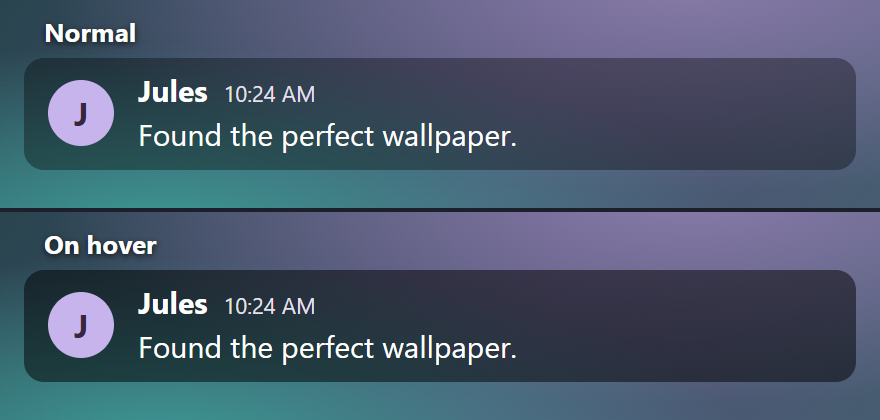
Click Copy bubble CSS, paste it below your wallpaper CSS in Vencord → Edit QuickCSS, and save.
/* Message bubble background */
[class*="messageListItem_"] [class*="message_"] {
    background-color: rgba(0, 0, 0, 0.35) !important;
    border-radius: 10px !important;
    margin: 4px 12px !important;
    padding-top: 6px !important;
    padding-bottom: 6px !important;
}

/* Hover effect */
[class*="messageListItem_"] [class*="message_"]:hover {
    background-color: rgba(0, 0, 0, 0.5) !important;
}